Nearly everyone who builds a first site hits a moment where something stops working and the screen offers no explanation. The page you just wrote isn’t there, the layout looks scrambled, or a browser warning suggests your site is dangerous. These are the most common technical problems beginners face when starting a website, and each has a cause that can be explained in a couple of sentences.
This guide goes through them one at a time: what is actually happening, and the first calm thing to try. If you want a wider picture of the process, what building your first website is really like covers it from start to finish.
Why every beginner hits a technical wall (and why it says nothing about you)
A website is several separate parts working together: a domain name, a place where the files live, the software that builds your pages, a theme that controls the look, and the browser each visitor uses. Any one of them can misbehave without the others being affected. That is why problems feel random when you are new.
Experienced site owners run into the same problems. The difference is that they have seen each one before and know which part to check first. That is a matter of exposure, and you get it by working through a few snags.
You also don’t need to understand how the machinery works to fix most problems. You need to read the message carefully, change one thing at a time, and know where to ask. Feeling “not technical enough” usually means you haven’t met the problem before.
“I published it, so why can’t I find it?” When a new page doesn’t show up
This complaint covers two different situations, and the fix depends on which one you are in.
The page isn’t showing on your own site
Start with the simplest checks:
- Confirm the page’s status says Published, not Draft, Pending or Scheduled. A scheduled page stays hidden until its set time.
- Open the page’s address in a private or incognito window. If it appears there, your normal browser is showing you an old saved copy, and a hard refresh or clearing the browser’s cache will fix it.
- Check the address for typos, including a stray character or a different ending than the one you set.
- If the page shows a “404 Not Found” message and the site runs on WordPress, open the permalink settings and save them again without changing anything. This refreshes the site’s list of addresses, and it often brings a missing new page back.
The page is live but doesn’t appear in Google
This is normal for a new page and a new site. Search engines have to discover a page, visit it and decide whether to list it. That can take days or longer, and nobody can promise you a date.
To check whether a page has been listed, search Google for site:yourdomain.com, using your own domain name. If your page isn’t in the results yet, make sure it is published and that it is linked from another page on your site, then give it time. Re-publishing the page over and over does not speed this up.
Waiting with an empty site can feel discouraging. If it does, what to do on the days your new website feels empty is written for exactly that stretch.
“It looks wrong on my screen”: layout, images and formatting surprises
A page that looks broken is almost always one of a handful of ordinary things.
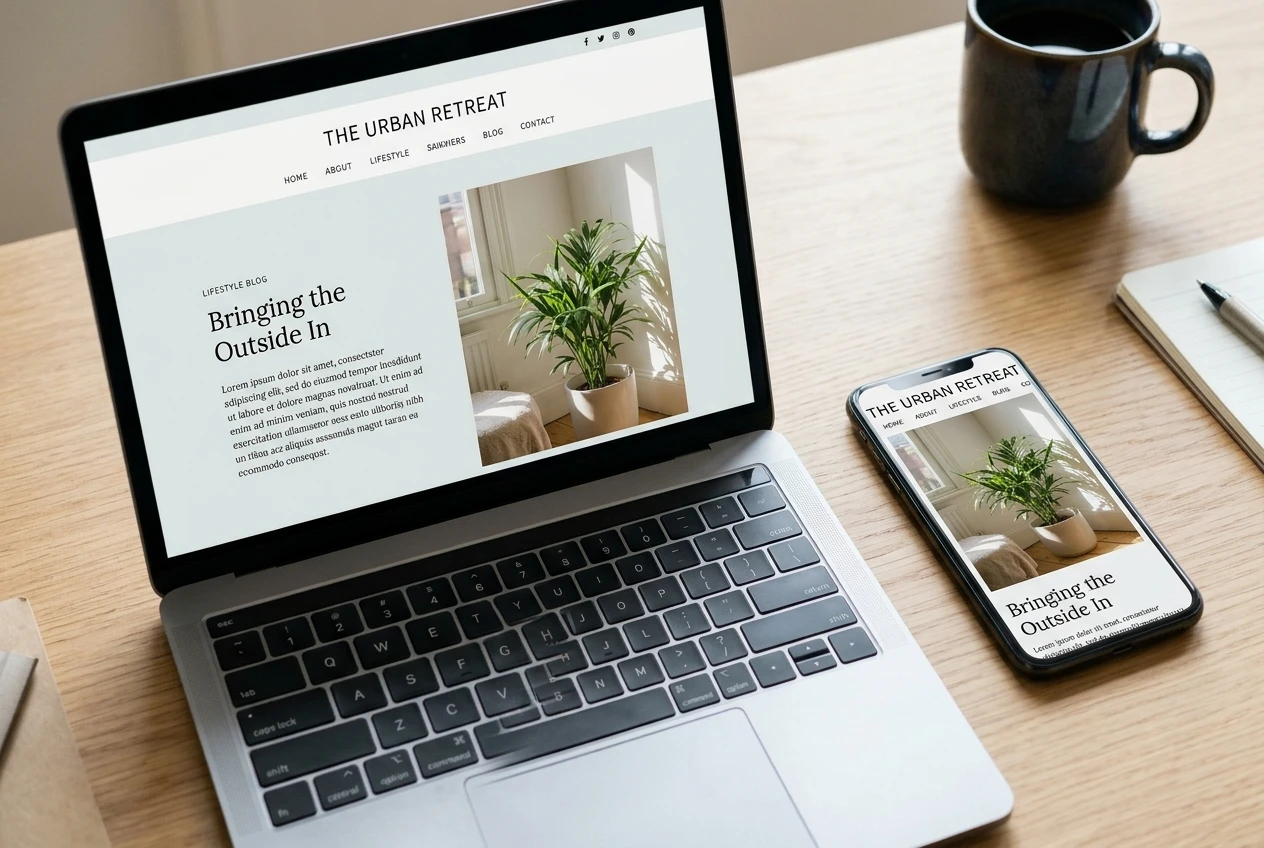
You are seeing an old version. Your browser stores copies of pages to load them faster, and sometimes it shows you the copy from before your change. Open the page in a private window or on your phone. If it looks right there, nothing is wrong with the site.
An image is far too large or in the wrong place. Photos straight from a phone or camera can be very large files and can display bigger than the space you gave them. Resize the image inside the editor, or shrink the file before uploading. Check the alignment setting too, since left, centered and full width behave differently.
Pasted text brought odd formatting with it. Text copied from a word processor or a web page can carry hidden styling: strange fonts, extra spacing, colored text. Paste it as plain text, then apply headings and bold inside your site’s own editor.
It looks fine on a computer and cramped on a phone. Themes rearrange content on narrow screens. Use the preview option for mobile view before publishing, and keep layouts simple. Fewer columns and fewer decorative elements leave fewer things to rearrange badly.
The text is suddenly huge or tiny. Browser zoom may have been changed by accident. Pressing Ctrl and 0 (Cmd and 0 on a Mac) resets it.
Most editors keep a revision history. If a page was fine an hour ago and is not now, restoring the earlier version takes a few clicks and loses nothing.
“I’m locked out” and other login and password moments
Being locked out feels more alarming than most problems, because it seems to mean losing everything. The content of your site is not lost. You just need to get back in.

- Use the reset link. Choose the “forgot password” option on the login page and follow the email it sends.
- Check spam and promotions folders. Reset emails often land there. Also confirm you entered the address you actually signed up with, since many people have two or three.
- Watch for old saved passwords. A browser may fill in an outdated password automatically. Delete the saved entry and type the new one by hand.
- Wait after repeated failures. Many systems pause logins for a while after several wrong attempts. Trying again immediately and repeatedly can extend the pause.
- Know which login you are using. Your account with a membership or service and the login for your own website’s dashboard are often separate, with separate passwords. Typing one into the other is a very common cause of “it says my password is wrong.”
A password manager helps here. It stores a different password for each login so you never have to remember or reuse them. Whatever you choose, keep a record of which email address belongs to which account.
“Not Secure” warnings and other scary-looking messages, decoded
Some of the most alarming messages are the least dangerous, so here are the common ones.

- “Not Secure” in the address bar. The browser is telling you that the connection to the page is not encrypted. It usually means the site is loading over http instead of https, or that its security certificate has not been issued or applied yet. This can happen on a brand-new domain. Try typing https:// at the start of the address. If the warning stays, check your hosting or site settings for the security certificate option, and ask for help if you can’t find it.
- A padlock with a warning, or a page that loads partly. Often one image or file on the page is being loaded insecurely, even though the page itself is secure. Look for any image you added by pasting an old http address, and re-upload it.
- “404 Not Found.” The address doesn’t match any page. Check for typos, and check that the page exists and is published.
- “Briefly unavailable for scheduled maintenance.” The site is in the middle of an update. Wait a few minutes and refresh.
- “500 Internal Server Error” or a similar message. Something on the server side went wrong. If it started right after you installed or updated something, undo that last change first. If it didn’t, wait a few minutes and try again, then contact support.
When you see an unfamiliar message, copy its exact wording. That wording is the most useful thing you can bring to a search engine or a question in a community.
“I think I broke it”: how to undo, step back and breathe
The most useful question in any technical problem is “what did I change last?” Sites rarely break by themselves. They break after something changes, and that change is usually still easy to reverse.
Here is a calm order of actions:
- Stop making changes. Each new attempt makes it harder to tell what caused the problem.
- Undo the last change only. Deactivate the plugin you just added, restore the previous revision of the page, or switch back the setting you adjusted.
- Take a screenshot before trying anything new. A picture of the current state helps you compare and helps anyone assisting you.
- Leave unfamiliar settings alone. If you don’t recognize a file or option, it is safer to leave it than to delete it.
- Step away for ten minutes. A short break fixes more problems than it sounds like it should, because you come back reading the screen instead of reacting to it.
Feeling like a fraud at this stage is common, and that feeling has its own gentle explanation. Breaking something small and fixing it is how people become comfortable with their own site.
How to ask for help so you get a useful answer fast
A question like “my site is broken, help” is hard to answer, because the person reading has to ask you five follow-up questions first. A good question lets them answer on the first reply.
Include these five things:
- What you were trying to do.
- What you expected to happen.
- What happened instead, with the exact wording of any message.
- A screenshot, if there is anything to see.
- What you have already tried.
For example: “I published a new page and it shows ‘Page Not Found’ when I click the link. I expected to see the article. I’ve checked that its status is Published and I’ve tried a private window. Here’s a screenshot of the error and the address I’m using.” Anyone reading that knows what to suggest next.
Asking in a community is also easier than most newcomers expect, even if you are shy about it. The guide on how to use the Wealthy Affiliate community so it actually helps you covers how to post, what to expect back, and how to ask without feeling exposed.
A 5-minute troubleshooting routine to keep for every future snag
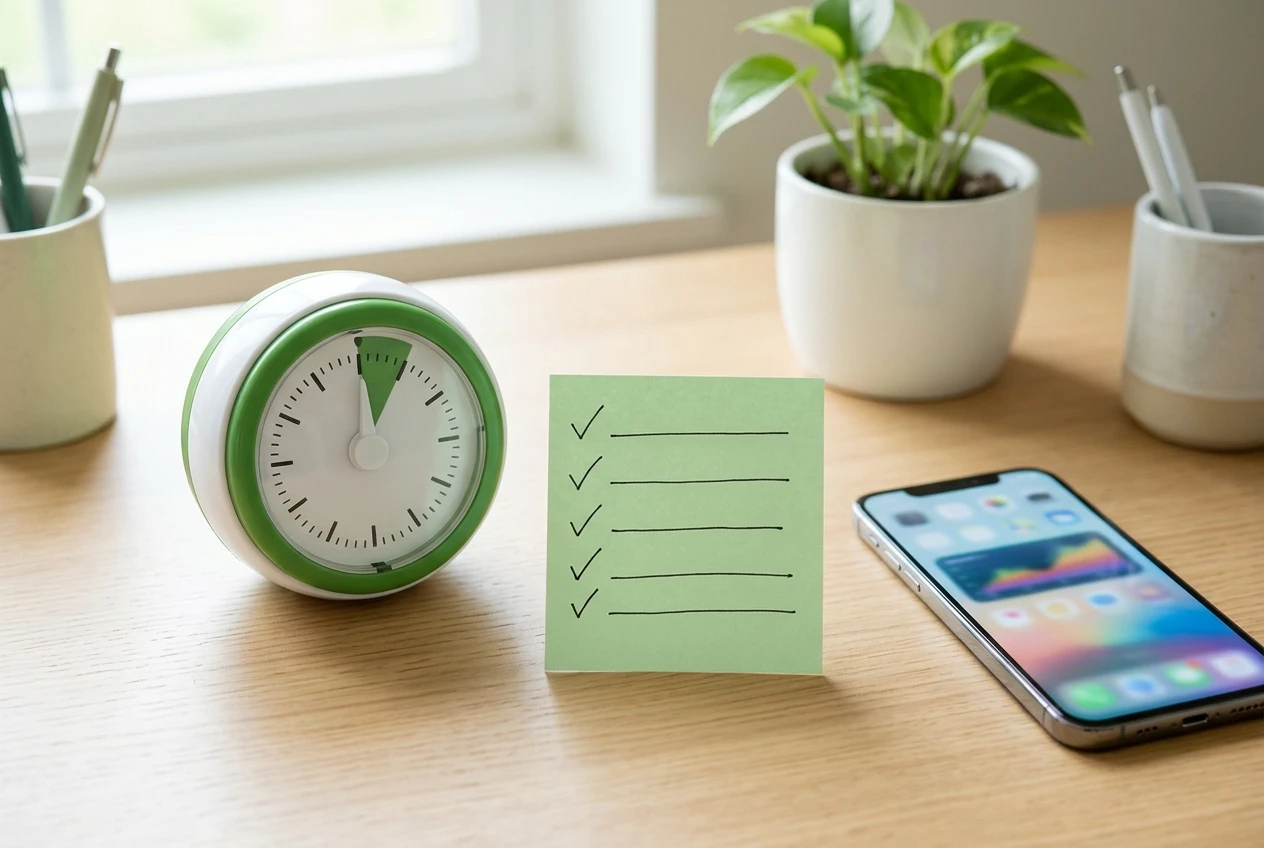
Keep this list somewhere you can find it. It works for nearly every problem above.
- Minute one: read the message. Note exactly what it says, and take a screenshot.
- Minute two: rule out your own screen. Refresh the page, open it in a private window, and look at it on another device.
- Minute three: find the last change. Ask what you did just before the problem started, and undo only that.
- Minute four: search the exact wording. Put the error message in a search engine in quotation marks. Others have almost certainly met it before.
- Minute five: write your question. If the problem is still there, use the five-part format above and post it.
Five minutes won’t solve every problem, but it will either fix it or leave you with a clear question to ask. Both outcomes are progress.
If you haven’t started yet, the free Wealthy Affiliate starter membership is a good place to begin, and what you get at each level is laid out in free vs paid starting options. Once you are in, post your first “silly” question in the community. When you’re new there is no such thing as a silly question, and the person who answers it was once new too.